SETUP GUIDE
How to Set Up Pub TV on Apple TV
Watch Pub TV on Apple TV 4K or Apple TV HD. Install and stream 24,000+ live channels directly on your TV.
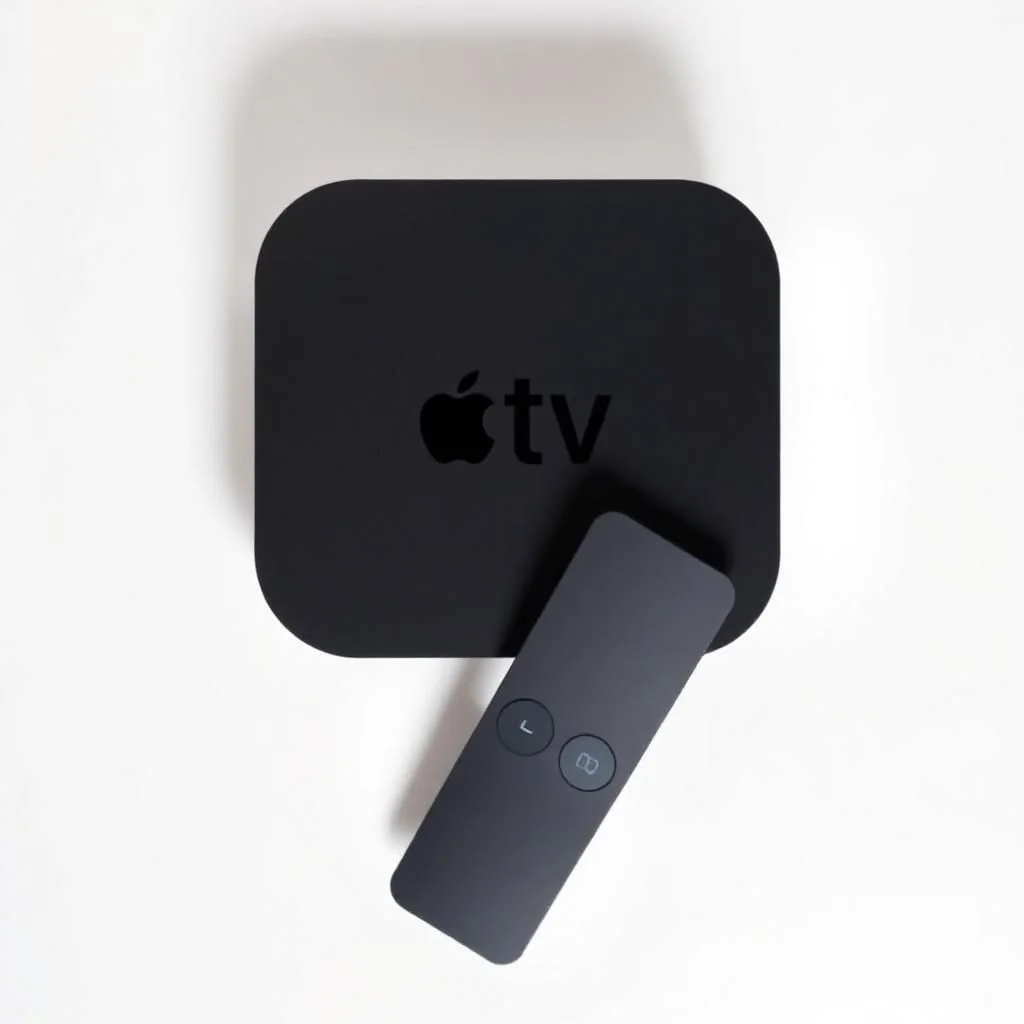
Setting Up Pub TV on Apple TV
Pub TV streams beautifully on Apple TV 4K and Apple TV HD — bringing 24,000+ live channels to your big screen with AirPlay support.
Compatible Devices
- Apple TV 4K (1st, 2nd, 3rd generation)
- Apple TV HD (formerly Apple TV 4th generation)
Step 1 — Open the App Store
On your Apple TV home screen, select the App Store icon.
Step 2 — Search and Download
Search for “Pub TV”, select the app, and click Get to download it.
Step 3 — Sign In
Open the Pub TV app on your Apple TV. Sign in with your subscription credentials to access all channels instantly.
Step 4 — Watch Live TV
Browse by category or search for specific channels. Enjoy live sports, news, movies, and international TV in 4K HDR.
Using AirPlay
You can also mirror Pub TV from your iPhone or iPad to Apple TV using AirPlay — simply tap the AirPlay icon in the Pub TV app and select your Apple TV.
Troubleshooting
- Slow streaming: Check your network settings on Apple TV and ensure you are on a 5GHz Wi-Fi band
- Login issues: Reset your password at pubtv.tv/app or contact support
Ready to Watch?
Start your Pub TV free trial and get instant access to 24,000+ live channels.